
Custom Field Mapping
Nerdly provides the ability for you to map any field from an AP transaction to the Advanced Intercompany Journal Entry. To do this, type "NMCA Transaction Field Mapping" into the search bar and select "New NMCA Transaction Field Mapping." There, you will be greeted with a form that looks like this:
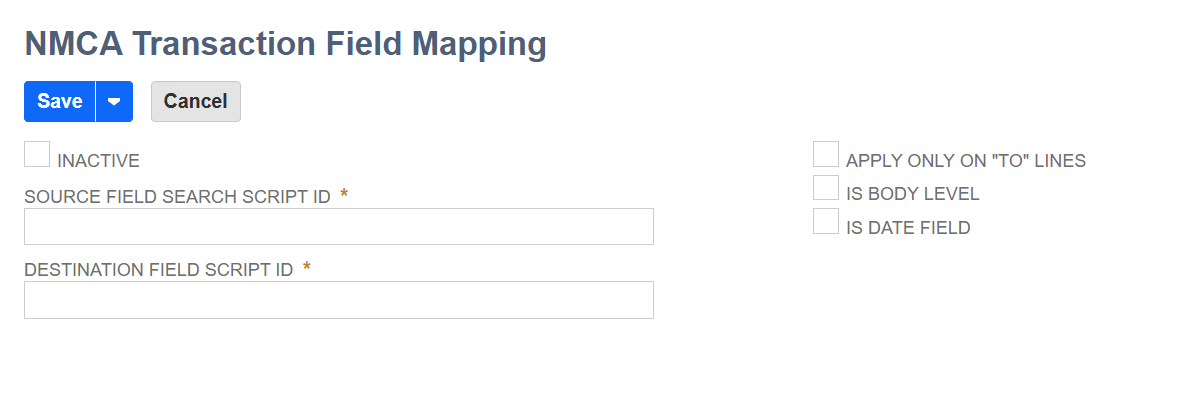
To create a custom field mapping, you will need the Script ID of the NetSuite field you intend to map. Note that this may be the same field on the source (AP) and destination (ICJE) transactions or different fields, depending on your use case. Then, fill out the form as follows:
- Source Field Search Script ID : type the script id of the source field (on the AP transaction)
- Destination Field Search Script ID : type the script id of the destination field (on the ICJE)
- Is Body Level: check this box if this is a body-level field (otherwise, by default, the field will be interpreted as a line-level field)
- Apply Only On "To" Lines: check this box to map this field only for the "destination" lines of the ICJE (otherwise, by default, the field will map on all lines)
- Is Date Field: check this box if the field is a date
Don't forget to click "Save"--and that's it! Now every time Nerdly runs, your custom field will map from the AP transaction onto the Advanced ICJE. There are a couple more example screenshots below, but if you still have questions, feel free to reach out. We're happy to help!
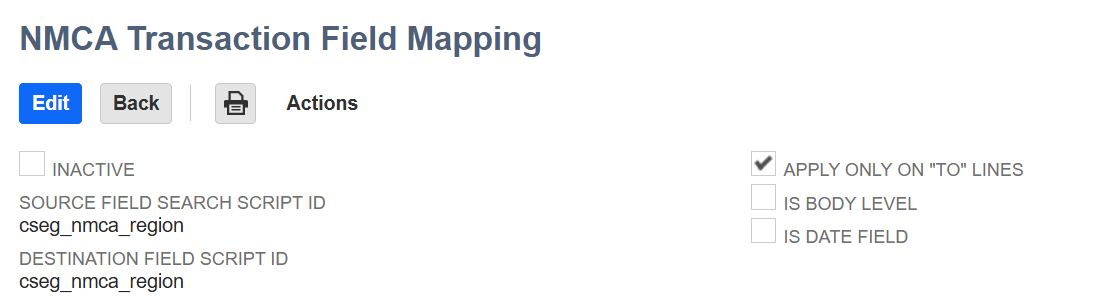
In the above example, the line-level custom segment field with the script ID "cseg_nmca_region" will be mapped from the AP transaction to the destination lines of the Advanced ICJE.
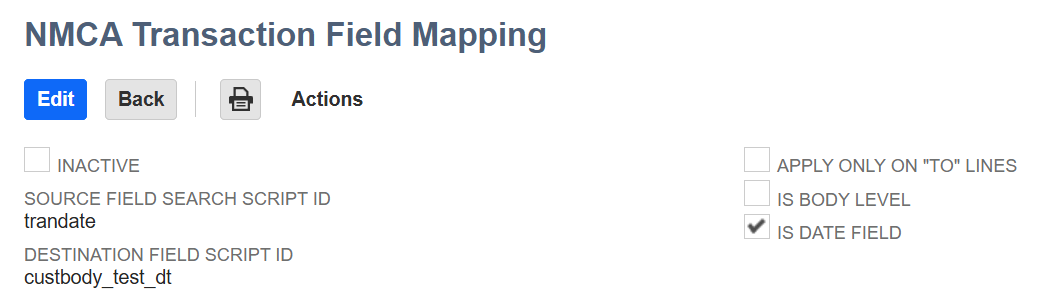
In the above example, the body-level NetSuite-native "Transaction Date" field on the AP transaction will be mapped to the custom field with the script ID "custbody_test_dt."